Blog ›
How to edit a PDF on Mac: Preview, free tools and when you need more
To edit a PDF on a Mac, open it in Preview and turn on the Markup toolbar: you can add text, highlight, sign, fill in forms and move or delete pages, for free. What Preview cannot do is change the words already in the PDF. For that you need an editor: PDF Agents for Mac lets you click a line and retype it in the same font, and Acrobat Pro, PDF Expert, PDFgear and LibreOffice can edit text too. Below: what to use for which edit, step by step.
The short version
| You want to | Use |
|---|---|
| Add a note, a name or a date | Preview: the Text tool in the Markup toolbar |
| Sign | Preview: the Sign tool (more ways to sign) |
| Fill in a form | Preview: click into the fields |
| Delete, move or rotate pages | Preview: the Thumbnails sidebar |
| Change a word, a date or an amount that is already there | An editor: PDF Agents for Mac (Edit Text), PDFgear, PDF Expert, Acrobat Pro, or LibreOffice Draw |
| Rewrite whole paragraphs | Acrobat Pro or PDF Expert, or convert to Word, edit, and save as PDF again |
| Remove private details for good | A redaction tool, not an editor (how to redact a PDF) |
What can Preview edit?
Preview comes with every Mac and opens PDFs by default. Its editing tools are in the Markup toolbar: click the pen-tip button at the top of the window, or choose View → Show Markup Toolbar (Shift-Command-A). From there you can:
- Add text. The T button places a text box you can type into, move and restyle.
- Highlight, underline and strike through selected text, and add sticky notes.
- Draw shapes, arrows and lines, or sketch with the trackpad.
- Sign with a signature drawn on the trackpad, or written on paper and held up to the camera.
- Fill in forms. In a fillable form, click a field and type.
- Work with pages. Show the thumbnails (View → Thumbnails), then drag pages to reorder them, press Delete to remove one, rotate with Command-R and Command-L, or drag another PDF's thumbnail in to combine files (how to combine PDFs).
- Redact. Tools → Redact blacks out a selection and removes the text under it when you save.
Everything above happens on your Mac; nothing is uploaded. For many people that covers every edit they ever make.
How do I add text to a PDF on a Mac?
- Open the PDF in Preview and show the Markup toolbar (Shift-Command-A).
- Click the T (Text) button. A box that says "Text" appears in the middle of the page.
- Drag it to where it belongs and type over the placeholder.
- Use the A button (Text Style) for font, size and colour.
- Choose File → Export as PDF to save a copy, so the original stays as it was.
The text box is an annotation: it sits on top of the page. Most viewers show it, and someone else can still move or delete it. If it must stay put, flatten the PDF afterwards (the Flatten tool does that).
How do I change the existing text in a PDF on a Mac?
This is where Preview stops. It has no tool to select a word that is already in the PDF and change it; the Text tool only adds new text on top. The usual workaround in Preview, a white box over the old word with a text box on top, works on paper but looks off on screen, because the font and size will not match. These tools do it properly:
PDF Agents for Mac: Edit Text
PDF Agents for Mac is our app, so take this section with that in mind. Its Edit Text tool works one line at a time and is free:
- Add the folder that holds the PDF as a vault (Add Vault… in the sidebar) and select the document.
- Click Edit Text in the toolbar, then click the line you want to change.
- The line's words appear in the Format pane on the right. Change them and click Replace, or click Remove to make the line disappear.
- Repeat for other lines, then save. The result is a new PDF next to the original; the original is not changed.
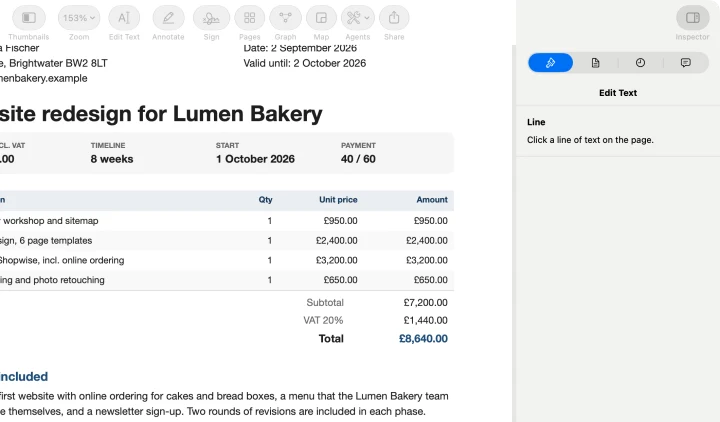
The new words are written in the line's own size and colour, and in its font when that font is installed on your Mac (otherwise Helvetica). What it does not do:
- It does not reflow paragraphs. If the new words are much longer than the old ones, the line gets cramped; it will not push the next line down. For rewriting paragraphs, see the options below.
- The old words are covered, not deleted. They are still in the file underneath and can be found by search or copied out. That is fine for fixing a typo or a date. For a name, an account number or anything private, use Redact, which removes the text.
- It needs real text. On a scan there are no lines to click. Run OCR first, or use Whiteout to cover an area and type over it.
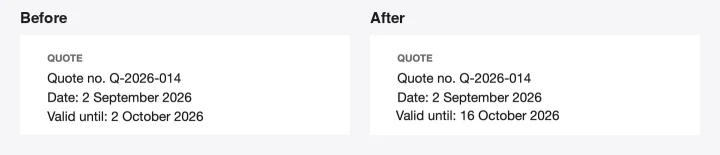
In the browser: Whiteout
If you do not want to install anything, the Whiteout tool on pdfagents.ai covers an area you drag over in the paper's colour and lets you type new text into it. It runs in the browser tab, so the PDF is not uploaded. The new text is always in Helvetica, so it will not match a different font exactly, and as with Edit Text, the old words stay in the file under the box. Downloads are free.
Free: LibreOffice Draw and PDFgear
- LibreOffice Draw (free, open source) opens a PDF as editable text boxes: File → Open, pick the PDF, and click into any text. Each line usually becomes its own box, fonts that are not on your Mac are replaced, and complex layouts can shift. Export with File → Export as PDF. Good for a few changes in a simple document.
- PDFgear is a free PDF editor with a Mac app that edits existing text. Check its current terms and what it asks for before you rely on it for work documents.
Paid editors that reflow text
Adobe Acrobat Pro and PDF Expert let you click into a paragraph and edit it like a word processor, with the text reflowing inside its box. If you rewrite text in PDFs every week, this is what you are paying for. Both cost a subscription or a yearly fee; compare them before you buy.
Or: convert to Word, edit, and save as PDF
For a document you will rewrite heavily, it is often easier to convert it to Word (or Pages), edit it there and save it as a PDF again. The layout will not survive perfectly; PDF to Word without losing formatting explains what to expect, and how to save a Word document as a PDF covers the way back.
How do I edit a scanned PDF on a Mac?
A scanned PDF is a picture of a page. Preview can still add text, signatures and shapes on top, but no editor can "change" the words, because there are none, only pixels. Two routes:
- A few changes: cover the old words with Whiteout and type the new ones. Run OCR afterwards if the file needs to be searchable.
- A lot of changes: run OCR, convert the result to Word, edit, and save as PDF. Or retype it; for a one-page letter that is often fastest.
Which one should I use?
- Adding, signing, filling, page changes: Preview. It is already on your Mac.
- Fixing a typo, a date or an amount in a PDF you received or made: PDF Agents for Mac (Edit Text, free) or the Whiteout tool in the browser.
- Rewriting paragraphs often: Acrobat Pro or PDF Expert.
- Hiding something private: redaction, never a white box.
Questions people ask
Can I edit a PDF on a Mac for free?
Yes, for most edits. Preview, which comes with every Mac, can add text boxes, highlight, sign, fill in forms and move, rotate or delete pages. It cannot change words that are already in the PDF. For that, PDF Agents for Mac, which is free, has an Edit Text tool, and LibreOffice Draw is a free alternative that opens PDFs for editing.
Why can't I edit the text of a PDF in Preview?
Preview is a viewer with markup tools. It adds new things on top of the page (text boxes, shapes, signatures) but has no tool that changes the text the PDF already contains. To replace existing words you need an editor such as PDF Agents for Mac (Edit Text), Adobe Acrobat Pro, PDF Expert or PDFgear.
How do I edit a scanned PDF on a Mac?
A scan is a picture of a page, so there is no text to edit. Run OCR first to add a text layer, then cover the words you want to change and type over them with a whiteout tool. For a long rewrite it is usually quicker to retype the document.
Is my PDF uploaded when I edit it on a Mac?
Not with Preview, PDF Agents for Mac or LibreOffice: they work on the file on your Mac. Most websites that edit PDFs upload the file to their server. The pdfagents.ai browser tools are an exception: they run inside the browser tab.
When I change a line, is the old text gone?
Not with a cover-and-retype edit. PDF Agents' Edit Text and Whiteout cover the old words and write the new ones on top, so the old words are still in the file and can be found by search or copied. If the old text must not be readable, use a redaction tool, which removes it.
Change the text of a PDF on your Mac
PDF Agents for Mac: click a line, change its words, keep its look. It is free, with every agent, and nothing is uploaded.
PDF Agents for Mac →