Blog ›
How to sign a PDF for free on iPhone, Mac, Windows and Android (and when a drawn signature is enough)
Printing a PDF, signing it with a pen and scanning it back is still how most people sign. It is slower than every alternative and produces a worse file. Here is how to sign a PDF on every device, mostly with what is already installed, what the result is worth legally, and the one case where you really do need a certificate-based e-signature service.
First: what kind of signature do you need?
Most everyday documents, such as offers, timesheets, consent forms, rental paperwork and NDAs, are fine with a simple electronic signature: an image of your signature placed on the page, ideally with the date. In the EU (eIDAS) and the US (ESIGN/UETA) that is legally valid for ordinary contracts. A few documents require a qualified electronic signature with a certificate from an identity-verified provider: some employment and consumer-credit contracts in Germany, certain court and notarial filings. If the other side asks for “QES” or “DocuSign with ID check”, use their service. Everything below covers the first kind.
iPhone and iPad
Open the PDF (Files, Mail, Safari), tap the markup pen, tap + → Signature, draw it once with your finger, and it is saved for next time. Drag it into place, resize, tap Done. Free, offline, decent quality.
Mac
Preview → Tools → Annotate → Signature → Manage Signatures. You can draw on the trackpad, hold a signed piece of paper up to the camera, or on newer Macs sign on your iPhone. Place it, then File → Export as PDF. Note that Preview's signature stays an annotation unless you export; a recipient could in theory move it.
Windows
Microsoft Edge opens PDFs and has a Draw tool; it is clumsy for signatures. Adobe Acrobat Reader (free) has Fill & Sign with draw, type or image, and it flattens the signature into the page. Both are free.
Android
Google Drive → open the PDF → pencil icon → draw. Adobe Acrobat Reader for Android has the same Fill & Sign as on Windows.
In the browser, without uploading the file
If you are on a device where none of the above is handy, or you want the signature and date placed precisely without hunting through menus, pdfagents.ai does it in the browser: drop the PDF, say sign the last page, draw or type your name, pick the corner, add today's date, download (free). The file never leaves your browser, which is the difference from the “sign PDF online” sites, where your contract is uploaded to a server first.
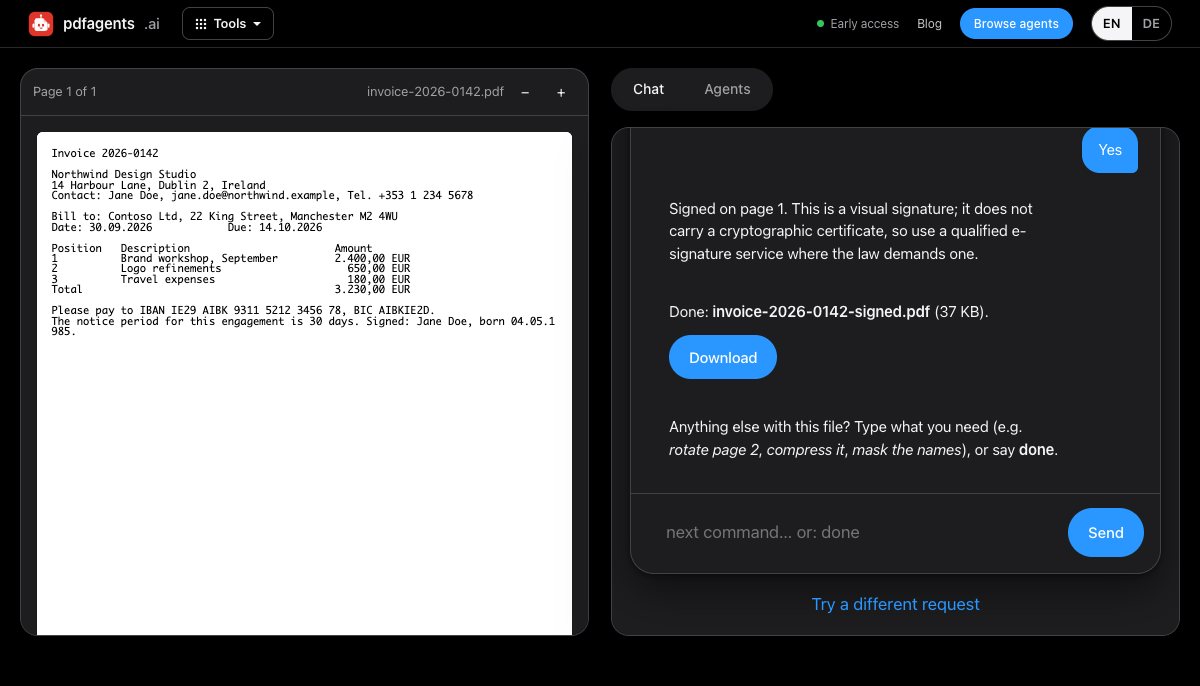
Five things that make a signed PDF hold up
- Flatten it. A signature that stays a movable annotation can be relocated or deleted. Export or flatten after signing (Preview's export, Acrobat's Fill & Sign, and pdfagents.ai all produce a flat signature).
- Add the date next to it. It is what people argue about later.
- Send the signed PDF back by the same channel you received the unsigned one, so the thread shows the sequence.
- Keep your copy. Obvious, and the step most people skip.
- Don't sign over form fields that are still editable; fill and lock the form first (pdfagents.ai can do both: fill this form, then sign).
When to use DocuSign, Adobe Sign or a QES provider instead
When the other party needs an audit trail (who signed, when, from where), when several people sign in sequence, or when the law requires identity verification. Those services charge per envelope or per month and are worth it exactly then, and not for the lease renewal your landlord emailed you.
Questions people ask
Is a drawn signature on a PDF legally valid?
For most contracts, yes. The EU's eIDAS regulation and the US ESIGN Act recognise simple electronic signatures, including an image of a handwritten signature, unless a specific law requires a stricter form. The exceptions are documents that demand a qualified electronic signature or a notary.
How do I sign a PDF without uploading it?
Use a tool that runs on your device: Preview on a Mac, Markup on an iPhone, Acrobat Reader on Windows, or pdfagents.ai in the browser, which places a drawn or typed signature without the file leaving your computer.
Can I sign a PDF form and lock it?
Yes. Fill in the fields first, then flatten the form so the entries can't be changed, then sign. pdfagents.ai does this in one conversation: fill this form, lock it, sign the last page.
Sign a PDF now, in your browser
Drop the file, say “sign the last page”, draw or type your name, add the date. Nothing is uploaded. Downloads are free.
Sign a PDF →