Blog ›
How to sign a PDF on Mac (trackpad, iPhone, camera)
To sign a PDF on a Mac, open it in Preview, show the Markup toolbar (Shift-Command-A), click the Sign button and create a signature: draw it on the trackpad, draw it on your iPhone, or hold a signed sheet of paper up to the camera. Click it to place it on the page, drag it into position and save. It takes a minute the first time; after that your signature is one click away. Below: each method step by step, how to stop the signature from being moved, and what to do when a drawn signature is not enough.
How do I create a signature in Preview?
- Open the PDF in Preview (double-click it, or Control-click and choose Open With → Preview).
- Click the pen-tip button to show the Markup toolbar, or press Shift-Command-A.
- Click the Sign button (a squiggle) and choose Create Signature.
- Pick one of the three ways below, then click Done.
With the trackpad
Choose Trackpad, click Click Here to Begin, and sign with one finger on the trackpad. The cursor disappears while you draw. Press any key when you are finished. If it looks wrong, click Clear and try again. Signing slowly, larger than you would on paper, gives the cleanest line.
With your iPhone or iPad
If your iPhone or iPad uses the same Apple Account and has Wi-Fi and Bluetooth on, choose iPhone or iPad (or Select Device). A drawing area opens on the phone: sign with your finger, or the Apple Pencil on an iPad, and tap Done. The signature appears on the Mac. This is the easiest way to get a signature that looks like your real one.
With the camera
Sign your name in dark ink on a plain white sheet. Choose Camera and hold the paper up to the Mac's camera so the signature sits on the blue line. When Preview has recognised it, click Done. Good light helps; a shadow on the paper shows up as a grey smudge.
How do I put the signature on the page?
- Click the Sign button and click your signature. It appears in the middle of the page.
- Drag it onto the signature line. Drag a corner to make it smaller or bigger.
- Add a date with the Text tool (T in the Markup toolbar) if the form asks for one.
- Choose File → Export as PDF to save a signed copy, so the unsigned original stays as it was.
Signing a form that has a signature field? Preview treats it like any other spot on the page: place the signature on top of the field.
Can the signature be moved after I sign?
Yes, and this surprises people. Preview adds the signature as an annotation, a layer on top of the page. Anyone who opens the PDF in Preview, Acrobat or another editor can click it, move it, or delete it. For a quote or a permission slip that rarely matters. For a contract, make the signature part of the page:
- Flatten the signed PDF. The Flatten tool merges annotations and form fields into the page, so the signature can no longer be selected.
- Or sign with a tool that writes the signature into the page, like the one below.
How do I sign a PDF on a Mac without Preview?
PDF Agents for Mac (our app, free) signs too. Click Sign in the toolbar: the first time, a pad opens where you draw your signature with the trackpad or mouse, and it is saved for next time. Click on the page where the signature goes, set its size, tick Add Today's Date if you need it, and click Save Signed Copy. The result is a new PDF next to the original with the signature drawn into the page, so it cannot be dragged off.
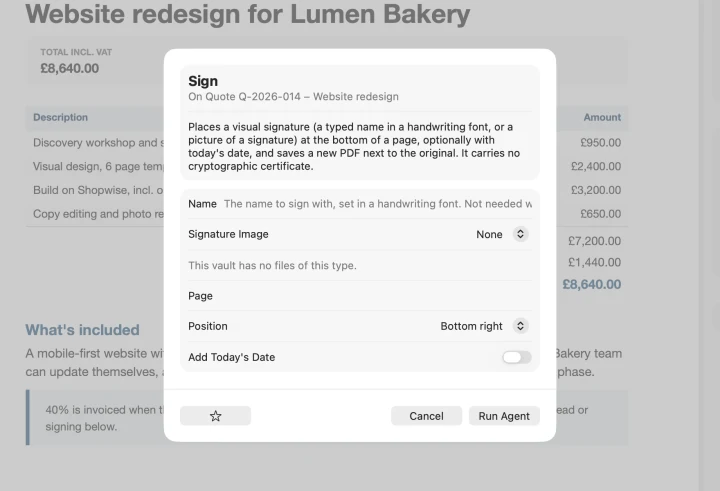
The Sign agent does the same without drawing: type your name and it is set in a handwriting font, or pick a scan of your signature, then choose the page and corner. It also runs on a whole folder at once, which helps when you sign the same form for many people.

No Mac app at hand? The Sign tool on pdfagents.ai lets you draw or type a signature in Safari or Chrome. It runs in the browser tab, so the PDF is not uploaded, and the download is free. On an iPhone, signing in Files or Mail with Markup is free.
When is a drawn signature not enough?
A drawn or typed signature is an electronic signature. In the US the ESIGN Act makes electronic signatures valid for most everyday agreements: quotes, leases, freelance contracts, school forms, as long as both sides agree to sign this way. It is not enough when:
- The other side asks for a digital signature with a certificate (for example a government portal or some banks). That needs a certificate-based signature, which Acrobat or a signing service provides. Preview and PDF Agents add visual signatures only.
- You need proof of who signed and when, with an audit trail and reminders. Services such as DocuSign or Acrobat Sign do that.
- The document must be notarised or witnessed, or the law requires a wet signature for that type of document. Check with whoever asked you to sign.
Questions people ask
How do I sign a PDF on a Mac for free?
Open the PDF in Preview, show the Markup toolbar (Shift-Command-A), click the Sign button and choose Create Signature. Draw it on the trackpad, on your iPhone or iPad, or hold a signature on white paper up to the camera. Then click the signature to place it, drag it into position, and save.
How do I sign a PDF on a Mac without a trackpad?
Use the camera option: sign a sheet of white paper, hold it up to the Mac's camera until it is recognised, and click Done. Or choose iPhone or iPad and draw the signature on the phone's screen with your finger.
Can someone move or remove my signature after I sign in Preview?
Yes. Preview adds the signature as an annotation on top of the page, which other PDF apps can select, move or delete. To make it part of the page, flatten the PDF afterwards, or sign with a tool that writes the signature into the page, such as PDF Agents for Mac.
Is a signature drawn in Preview legally valid?
For most everyday agreements in the US, an electronic signature such as a drawn one is valid under the ESIGN Act, as long as the parties agree to sign electronically. Some documents (certain real estate, court or notarised papers) need more. When the other side asks for a certificate-based digital signature or a signing service with an audit trail, a drawn signature is not enough.
Where does Preview store my signatures?
Preview keeps the signatures you create and, if iCloud is on, syncs them to your other Macs. You can delete them in the Sign menu or under Tools, Annotate, Signature, Manage Signatures.
Sign PDFs on your Mac, into the page
PDF Agents for Mac: draw your signature once, click where it goes, save a signed copy. It is free, and nothing is uploaded.
PDF Agents for Mac →