Blog ›
PDF to Word without losing formatting: what is realistic, and the ways that come closest
“Convert PDF to Word without losing formatting” is one of the most searched phrases about PDFs, and it is asking for something that does not quite exist. A PDF stores where every letter sits on the page; Word stores paragraphs that reflow. Converting one into the other is a reconstruction, and the question is which kind of reconstruction you need.
Two kinds of “keep the formatting”
Keep the look: the Word file should print like the PDF. Converters that aim for this use text boxes, absolute positions and section breaks to pin everything in place. It looks right and is miserable to edit: insert a sentence and the text boxes collide.
Keep the structure: headings are headings, paragraphs reflow, lists are lists, tables are tables. It will not print identically, and it is what you want if you are going to edit the text. Decide which you need before you pick a tool.
The options
Microsoft Word itself
File → Open a PDF in Word (desktop) and it converts on the fly. Surprisingly good at the “keep the look” kind for simple documents; it struggles with multi-column layouts, scans, and heavy tables.
Google Docs
Upload the PDF to Drive, right-click → Open with Google Docs. Produces a structural conversion, loses most layout, but handles scans with its own OCR. Everything is uploaded to Google.
Online converters
Smallpdf, iLovePDF, Adobe's online tool: layout-preserving, usually the best-looking output, free with daily limits, and the file goes to their server.
In the browser, without uploading
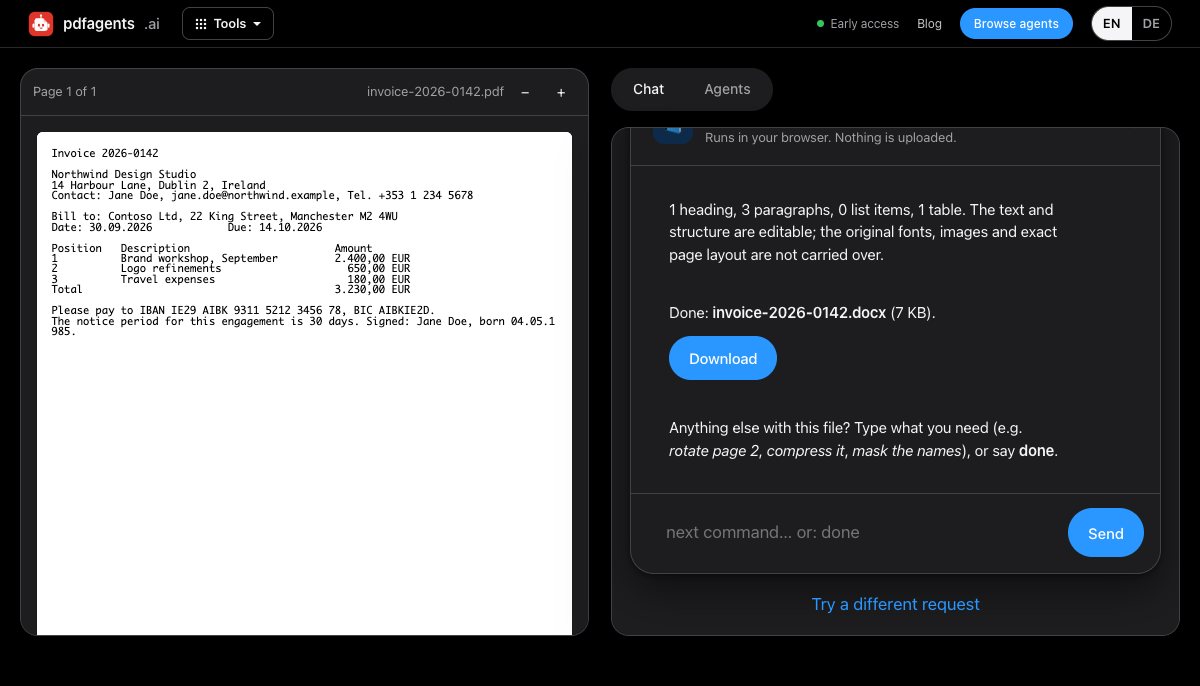
pdfagents.ai converts in the second way: it reads the structure (headings by size, paragraphs by spacing, lists by bullets, tables by alignment) and writes a real .docx with Word's own heading styles, so the navigation pane, table of contents and reflow all work. Fonts, images and exact positions are not carried over. For a document you are going to rewrite, that is the better starting point; for a document you only need to look like the original, use Word or a converter site. Downloading the .docx is free.
Scanned PDFs
A scan has no text to convert. Run OCR first (pdfagents.ai: make it searchable), then convert the searchable result. Expect to proofread numbers.
Getting a cleaner result from any converter
- Convert only the pages you need. Fewer pages, fewer layout surprises: keep only pages 4-9, then convert.
- Check tables first. They are the first thing to break. If the table matters, extract it separately to Excel and paste it into Word.
- Turn off “keep source formatting” when pasting between the converted file and your own template; the converter's styles rarely match yours.
- If the PDF was made from Word, ask for the original. Nothing beats the file that produced the PDF.
Questions people ask
Can I convert a PDF to Word without losing formatting?
Not perfectly: PDF fixes positions, Word reflows text. Layout-preserving converters (Word itself, Smallpdf, Acrobat) get closest visually but produce files that are hard to edit; structural converters (Google Docs, pdfagents.ai) keep headings, lists and tables as real Word elements and are better for editing.
What is the best PDF to Word converter?
For a look-alike copy of a simple document, open the PDF in Word. For an editable document that keeps its structure without uploading the file, pdfagents.ai's PDF to Word in the browser, which is free. For scans, Google Docs' OCR or OCR first and convert after.
How do I convert a scanned PDF to Word?
Run text recognition first. On pdfagents.ai, say “make it searchable”, then “convert to Word” on the result, all in the browser. Proofread numbers afterwards; OCR confuses similar digits.
Convert a PDF to Word in your browser
Drop the PDF and say “make this an editable Word file”. Headings, paragraphs, lists and tables come across as real Word structure. Downloads are free.
PDF to Word →