Blog ›
Scan a document with your phone and make the PDF searchable (OCR) without uploading it
Phone cameras make good scanners, but a photo of a page is just a picture: you cannot search it, copy from it, or let any tool read it. Text recognition (OCR) adds the missing text layer. Here is the whole path from paper to searchable PDF, with the steps that keep a confidential letter off other people's servers.
Step 1: scan well
- iPhone: Notes → camera icon → Scan Documents, or the Files app → Scan Documents. It finds the edges, flattens the page and saves a PDF. Choose “Color” for forms, “Black & White” for plain text.
- Android: Google Drive → + → Scan, or the Camera app's document mode on recent phones.
- Flat surface, light from the side, no shadow from your hand, phone parallel to the page. Blurry or skewed input is the main cause of OCR mistakes.
Both phone scanners can run text recognition on the device, which is the easiest route if you are only scanning. The steps below are for scans that arrive without a text layer: faxes, old PDFs, scans from an office copier, photos someone sent you.
Step 2: photos to PDF
If you have loose photos (JPEG, PNG, HEIC), combine them into one PDF first. On pdfagents.ai, drop the photos and say make a PDF from these photos; HEIC photos from an iPhone are decoded in the browser, one image per page, A4 or fit-to-image.
Step 3: make it searchable
Drop the scanned PDF and say make it searchable. The text-recognition engine (Tesseract, running inside your browser, about 8 MB on first use) reads each page in English or German and writes an invisible text layer exactly over the words. You get two files: the searchable PDF, which looks identical but can be searched and copied, and a plain text file.
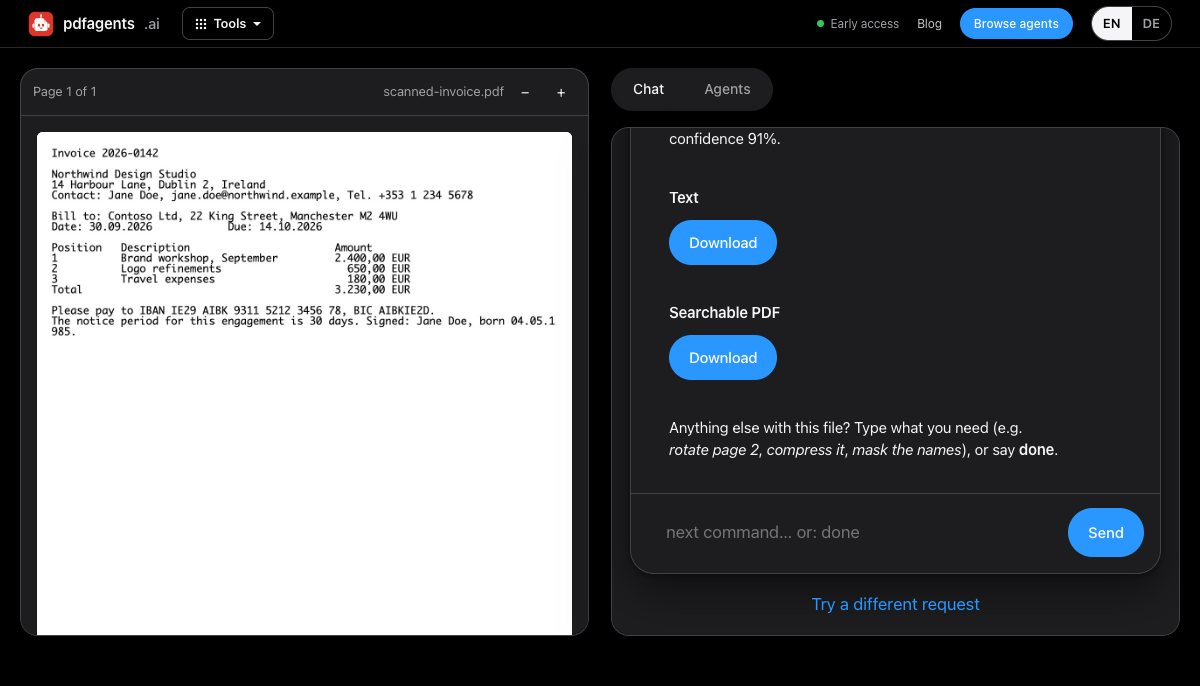
Step 4: now the other tools work
Once the text layer exists, the scan behaves like any PDF. On pdfagents.ai you can keep typing in the same conversation: mask the names (the Redactor proposes names, IBANs, phone numbers), pull the tables into Excel, convert to Word, read it to me, find every mention of “deadline”.
What OCR gets wrong, and how to tell
- Digits. 1/7, 0/8, 5/6 and 3/8 are the usual swaps. Any number you will act on, check against the image.
- Columns. Two-column layouts can be read across instead of down. The text file shows the order; the searchable PDF is unaffected for searching.
- Handwriting. Printed text recognises well; handwriting mostly does not. Expect fragments.
- Confidence below about 75 % means the scan was poor. Rescan at 300 dpi, straight, with good contrast, rather than fighting the output.
Why do it in the browser
The online OCR sites upload your scan. For a medical letter, a contract, a passport copy or anything you were handed in confidence, that is a problem no privacy policy fixes. In-browser recognition is slower (a few seconds per page) and limited to 30 pages a run, and that is the trade: the document stays yours.
Questions people ask
How do I make a scanned PDF searchable without uploading it?
Drop it on pdfagents.ai and say “make it searchable”: text recognition runs in your browser in English or German and returns a searchable PDF plus the plain text, free. Acrobat and the phone scanners can also do it; the online OCR sites can too, but they upload the file.
Can I OCR a photo of a document on my iPhone?
Yes. The Notes and Files scanners recognise text on the device. If you already have the photo, drop it on pdfagents.ai: HEIC is supported, the photo becomes a PDF page, and OCR adds the text layer, all in the browser.
Why can't I select text in my PDF?
Because it is a scan: the page is an image with no text layer. Run OCR to add one. After that, selecting, searching, copying, redacting and converting all work.
Make a scan searchable now
Drop the scanned PDF or the photos and say “make it searchable”. English or German, nothing uploaded. Downloads are free.
OCR a scan →